
Introduction

The movement of parts or assemblies is managed through layers.
To move a part, you must create a layer and insert that part into a filter. For example, this car door: create a layer, filter the parts to be added into it, and then name it.
This layer is selected, and all chosen movements will be applied to this layer:
Translation
Translation allows you to move the part along its X, Y, and Z axes.
Rotation
Rotation allows you to rotate the part around its three axes.
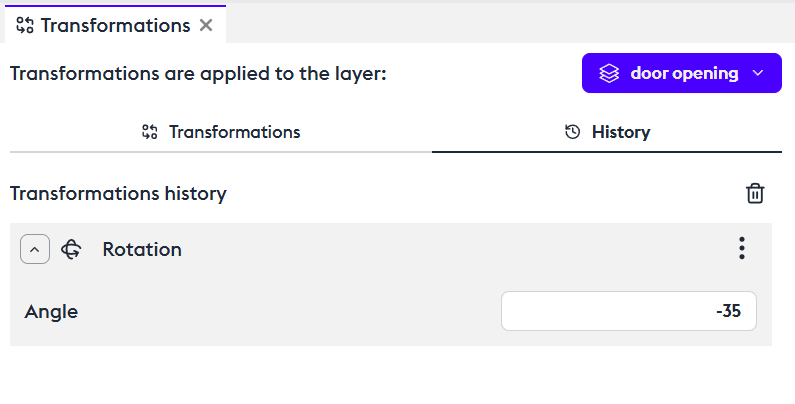
When manipulating in 3D, the panel will display the axis and the angle of rotation (this information also appears in the 3D view).
At the end of the manipulation, you can modify the angular value in the panel. The rotation will then be updated.
However, as soon as you choose another rotation axis, a new rotation will be created, which is why the angle resets to zero. You can then enter a new value that will modify the newly created rotation.
If you are using the World mode, the center of the part is selected.
If you want to rotate around a specific point, select the Feature mode and place your point on the model.
All your actions are reversible by clicking in the history (History).
Scale
The Scale tool allows you to change the scale of the part.
Exploded
The Exploded View tool allows you to create an exploded view of a part.
The method is the same—let’s take the braking system as an example.
The Boxing Filter
It’s useful here to revisit the concept of the box filter.
In the example, metadata considers both braking assemblies as a single part.
If you want to illustrate only one braking assembly, you should use a box filter to select only the left braking system, for example.
About boxing filters:
During the creation of your box filter, all transformations applied to parts of the model (including those on other layers) will be disabled for the duration of the box creation.
Align
The Align tool allows you to automatically align one part with another by selecting any edge of the part.
For example, let’s take a brake mounting nut. We create a layer containing it.
Since several nuts seem to have the same name, you need to add a box filter to act only on this specific part.
In our example, we move it using a translation and a rotation. Then, we choose to align it with its original hole by selecting the origin—here, the circle—then selecting the target—here, the hole—and the alignment will be performed automatically.
You can fine-tune it using the offset.