
General Philosophy : Add a Filter to Create a View
Create a Literral Filter to Display a View
The context of your model is based on adding multiple filters combined using operators.
These filters apply to a layer.
You can choose any existing metadata field — just some of them, or all at once.
You can check the number of parts contained in this layer using its badge, and select these parts by clicking on the badge.
Copy/Paste :
You can copy a filter from one layer to another, or within the same layer, by right-clicking in the filter bar and selecting Copy/Paste.
Create a Tag/Container
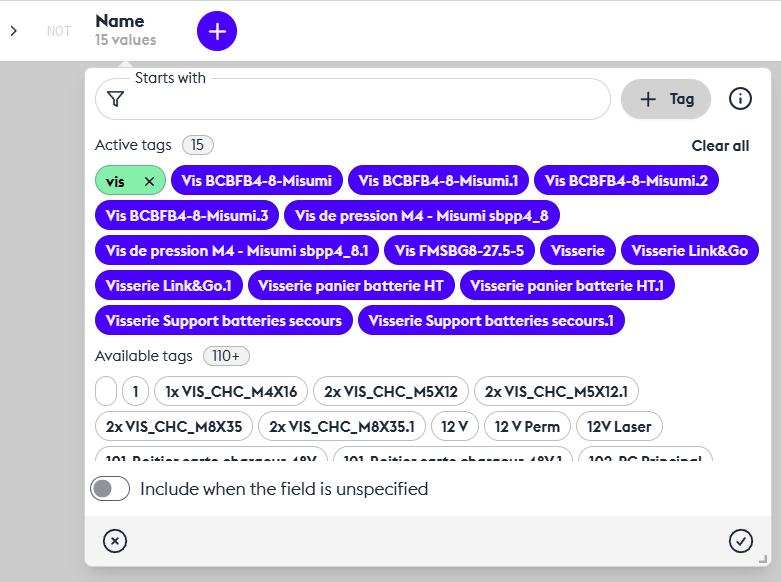
Tag Selection (Values): User Guide
The system allows you to select specific values using two types of tags:
- Blue tags: exact match
- Green tags: partial match (“contains”)
Tag Display
The available tags are displayed in a dedicated window.
If there are many values, infinite scrolling is enabled — additional tags load automatically as you scroll.
Blue Tags – Exact Match
These tags allow you to select values that match exactly.
Green Tags – Partial Match
These tags allow you to select values that contain the entered string, regardless of its position within the tag value.
Unlike blue tags, the search operates in “contains” mode — it finds tags even if the entered string appears in the middle or at the end.
This makes searching easier when you don’t know the exact beginning of the tag.
Tag Filtering
A filter field is available to narrow down tags.
The filtering engine uses a “starts with” rule and is case-sensitive — uppercase and lowercase letters must match exactly.
Example: to find TagExample, you must type Tag (not tag or Example).
Usage Tips
- Use blue tags when you know the exact beginning of the tag you’re looking for.
- Use green tags for more flexible searches, especially when you only know part of the tag.
- Remember to respect case sensitivity for blue tags; otherwise, no results will be displayed.
Types of Filters
Attributive Filter

To display all or part of the parts in the model, you can combine filters using inter-filter operators.
Intersection between two criteria identifies the parts that meet both conditions simultaneously.
In other words, it looks for cases where both criteria are true at the same time.
Exclusion works in the opposite way.
The view displays parts selected by the first filters while excluding those defined in the excluded filter.
Union adds the parts from the current filter to those already selected by previous filters, broadening the visualization.
YES/NOT Behavior
You can set a filter’s behavior to “NOT” to exclude the elements it contains.
For example, if you want to display all parts except those in the “Vis” filter, enable the “NOT” mode.
Active/Inactive Behavior
You can choose to activate or deactivate a filter’s effect depending on your temporary needs — for instance, to reveal certain parts of your model. This avoids having to delete a filter to disable it.
Filter Behaviors and Their Inter-Filter Operators
Inter-Filter Operators
The attributive filter is a filter that uses a specific metadata field and a list of values to calculate a set of geometric objects with those values. It allows you to select objects based on their properties.
Literal Filter
As shown before, this filter allows you to find parts or assemblies by typing words.
It works like the general search, so if you want to keep search results in a layer, just use this filter.
There’s also an option in the search tool called “Convert search to filter” to speed up the process.
Box Filter
This filter allows you to create a box by interacting directly with the 3D model.
Click on a part or assembly to include it in the box. Hold CTRL and click another part — the box will automatically expand to include it. You can modify the box size at any time, either by entering numeric values or directly in 3D using the Gizmo assistant.
The Gizmo has two modes: size or position, allowing you to adjust your box precisely.
Validate to obtain your filtered view.
Box Filter Variant: You can choose to include all objects that intersect the box or only those strictly contained within it.
Note: During box filter creation, all transformations applied to model parts (including those in other layers) are temporarily disabled.
Radius Filter
This filter allows you to select a group of parts based on their dimensions — more specifically, based on the radius of their bounding box.
It can be used to exclude non-essential parts (for example, to reduce polygon count) or, conversely, to identify parts for statistical purposes (count, weight, etc.).