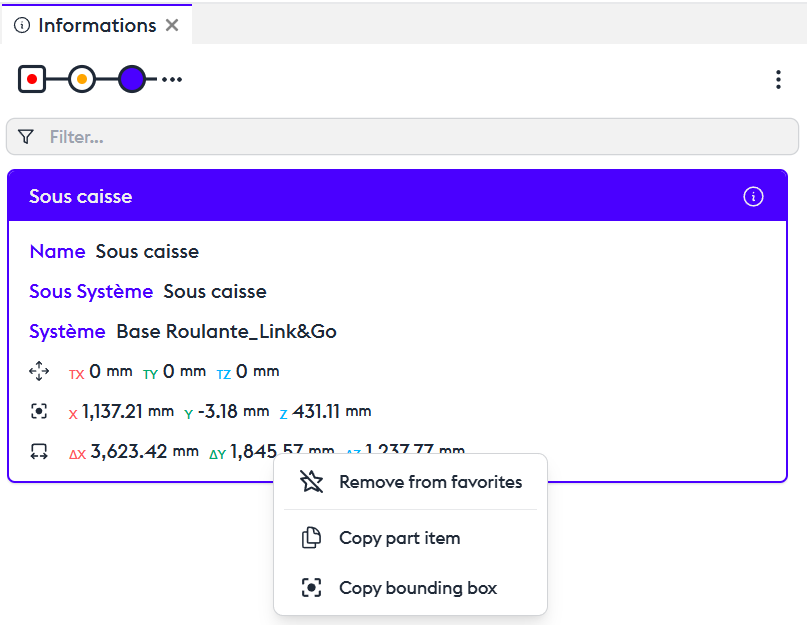
The information card displays all metadata associated with a part or system.
Presentation
Part Information
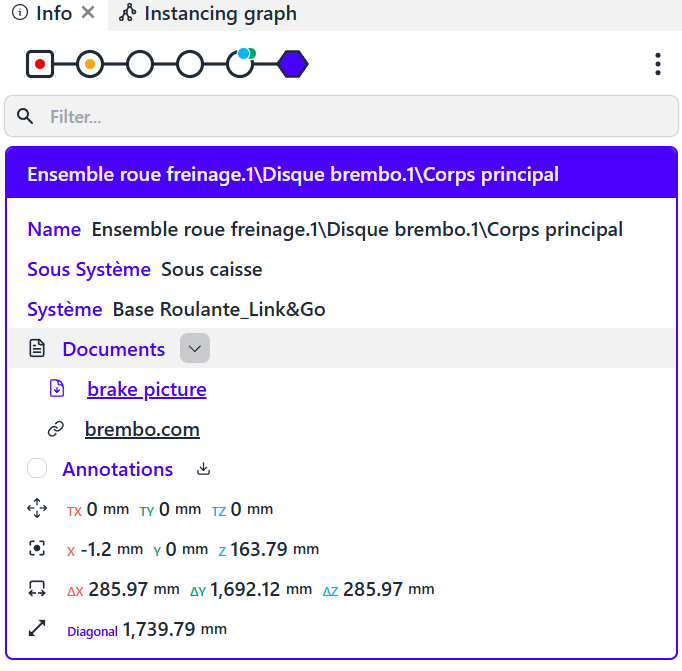
By default, the information sheet of a part presents the main metadata from the model, chosen by the model integrator:
- Name
- Subsystem
- System
It also presents geometric and positioning information:
- Its position (the translation of the part relative to its parent)
- The center of its bounding box
- The dimension of its bounding box
- The diameter of the sphere that encloses it
Metadata and Enriched Data
Metadata can be complex objects: they can be enriched with tables, comments, links, keywords, or various indications. These are implemented by the designer and/or the model integrator.

Press the Start button to begin.
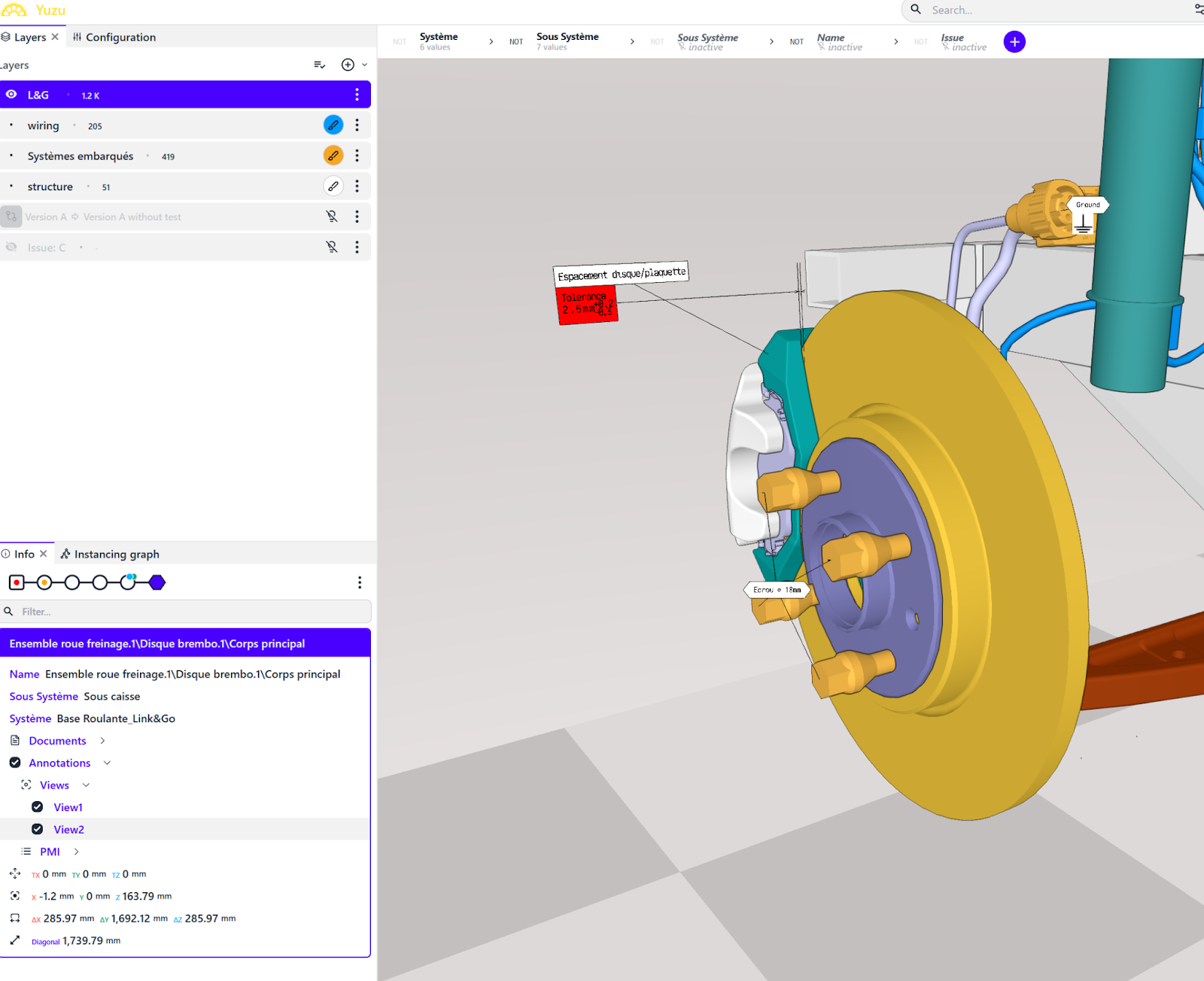
It is possible to attach documents (integrator rights) to the metadata, such as a photo of the part for download or in HTML or pre-recorded annotations by the integrator.
Hierarchy
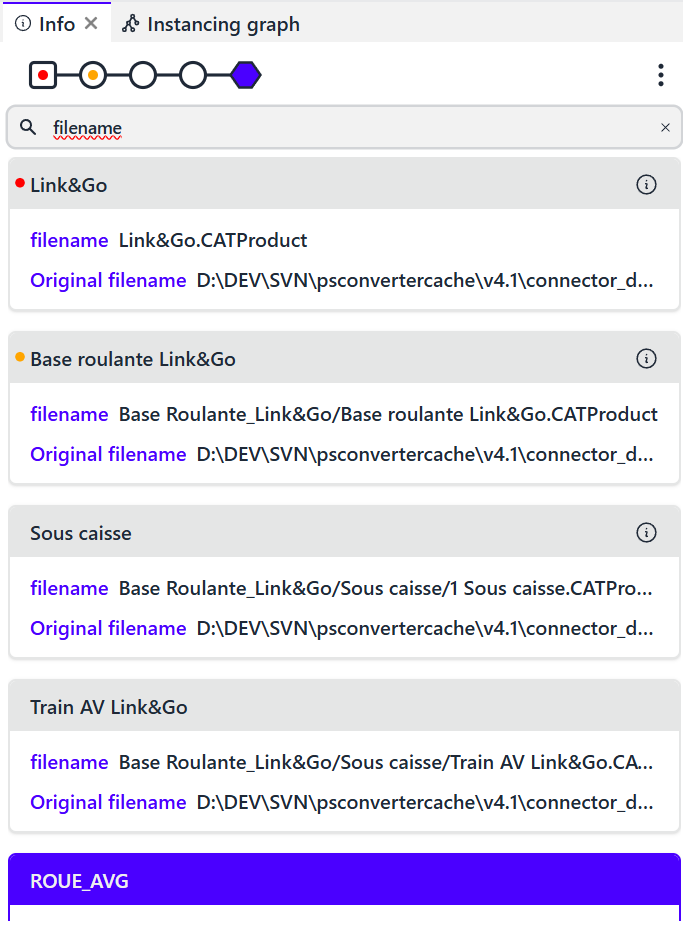
It is possible to trace the hierarchy of each part to identify or select the set to which it belongs by clicking on the nodes of its branch.
Additional Information
Some nodes have colored badges. The blue badge indicates the presence of an attached document. The green badge indicates one or more annotations.
Display Choices (Custom GUI)
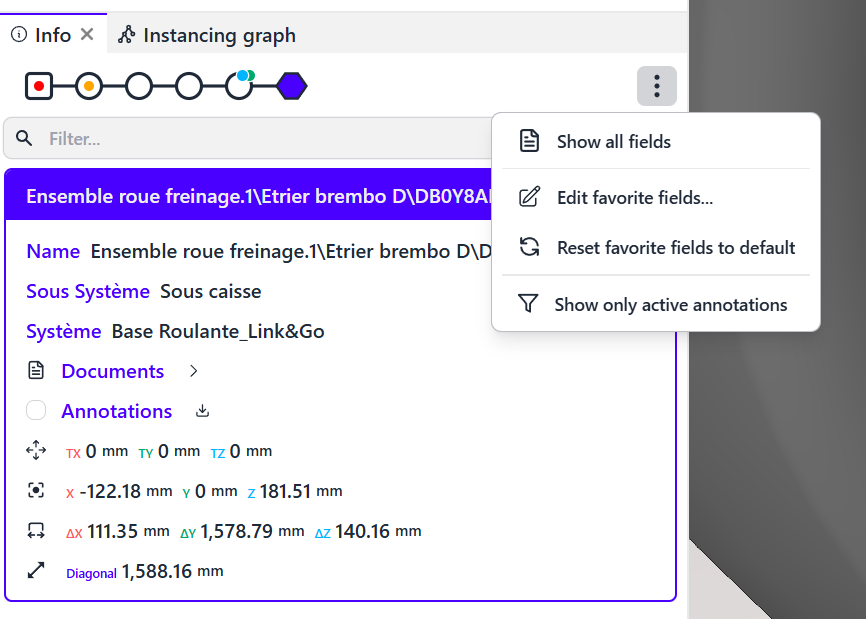
Show All Fields
You can choose to display all the information about the part and its hierarchy in the product structure. You then get all the available information.
Edit Favorite Fields
You can decide which important information the sheet should show by clicking on “Edit Favorite Fields.” This action will apply to all ID cards of the parts in the model and will be retained during future consultations.
Reset favorite fields to default
This allows only the information integrated by the administrator to be displayed.
Show only Active Annotations
You can decide to show all or part of the annotations inserted in the model by clicking on the appropriate button.
Quick Filtering
The display of metadata can be abundant. You can choose to quickly filter information by characteristics or attributes. For example, “name” allows you to display only the name of the part.
Context Menu
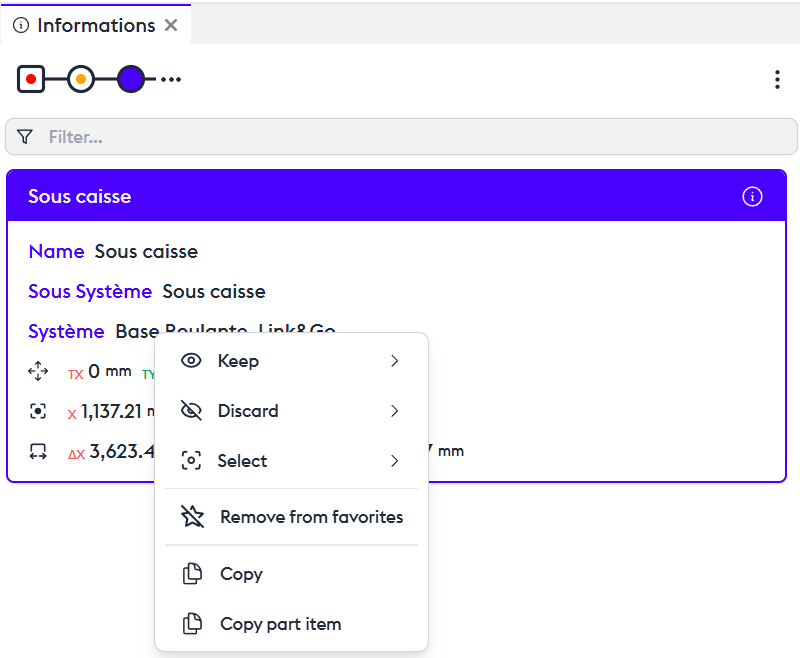
A right-click on a mention of the information card opens a context menu, offering several options.
Right-click on a name, subsystem, or system:
- Keep/…: Allows you to keep a part within a filter that will be added to an existing layer or a new layer.
- Please note that only metadata checked in the favorite fields of the ID Card (of any part) can be used to create a layer. If the layer creation option does not appear, it is most likely due to the absence of selected metadata.
- Discard/…: Allows you to create a layer of your choice and set its state to "invisible." This is useful for hiding a part or a set.
- Select/…: Allows you to create a layer of your choice and set its state to "inactive." This is useful for coloring, for example.
- Remove from Favorites: Allows you to manage the number of information items present on the card. These fields can be edited in the editor, available in the top-right menu of the "information" panel.
- Copy: Allows you to copy the name
- Copy part item: Allows you to copy all the part informations
Right-click on a measurement or transformation:
- Remove from Favorites: Allows you to remove the information present on the card. These fields can be edited in the editor, available in the top-right menu of the "information" panel.
- Copy Element: Allows you to copy the values to duplicate them in a text file or spreadsheet.